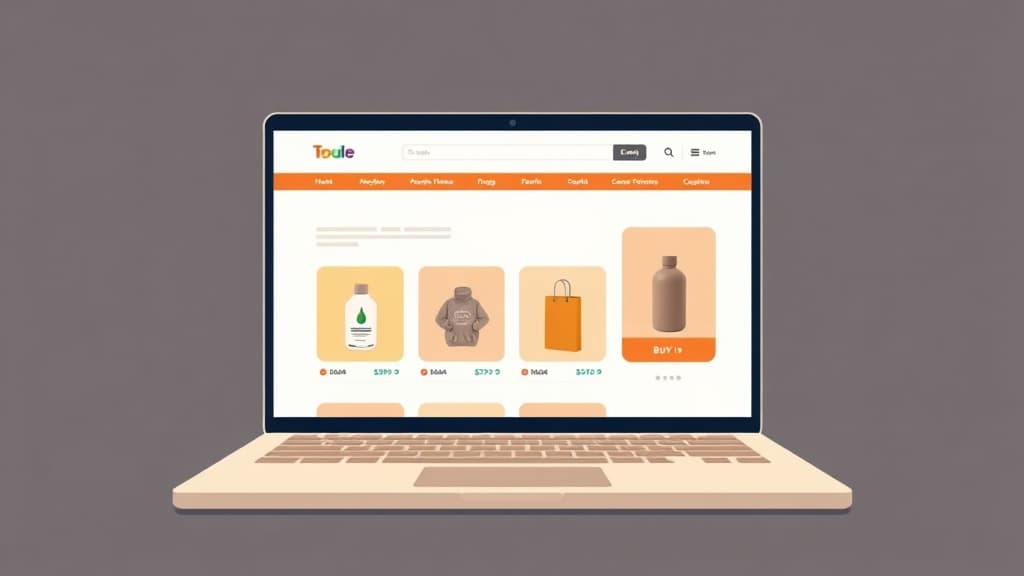
Adding an online store to your WordPress website is one of the highest-ROI things you can do for a product-based business. WooCommerce — the open-source eCommerce plugin that powers over 6 million stores globally — transforms any WordPress site into a full-featured store in under an hour. This guide covers exactly how to add an online store to WordPress, from WooCommerce installation through your first live sale, including how ZonedWeb's online store solution shortens the entire process.
Why WooCommerce Is the Right Choice for WordPress Stores
WordPress + WooCommerce is the most widely deployed eCommerce stack in the world for good reason:
- Free core: WooCommerce itself is free. You pay for extensions, payment processing fees, and hosting — but not for the platform license.
- No transaction fees: Unlike Shopify (0.5–2%) or Squarespace Commerce (3% on Basic), WooCommerce charges zero transaction fees. On $100,000 annual revenue, that's $500–2,000 back in your pocket every year.
- Complete ownership: Your product data, customer records, and order history live in your database. No platform holds your data hostage.
- Extension ecosystem: 800+ official WooCommerce extensions plus thousands of third-party plugins cover every imaginable store requirement — subscriptions, memberships, auctions, digital downloads, bookings, wholesale pricing, and more.
- SEO advantage: WordPress's superior content tools and WooCommerce's SEO-optimized product pages outperform dedicated eCommerce platforms in organic search for most product categories.
Before You Install: What You Need Ready
Get these items organized before starting WooCommerce setup — you'll need them during the setup wizard:
- Business details: Your business name, address, and whether you sell physical or digital products.
- Payment processor accounts: Set up a Stripe account (stripe.com) — it's the most reliable WooCommerce payment gateway. PayPal Business account is optional but recommended as a backup.
- Product information: Product names, descriptions, prices, SKUs, and product images. If you have more than 10 products, organize these in a spreadsheet.
- Shipping strategy: Will you charge flat-rate shipping, weight-based rates, or free shipping? Know your shipping zones (domestic vs. international) and carriers.
- Tax requirements: Know your sales tax obligations. US merchants typically collect sales tax in their home state at minimum. WooCommerce's built-in tax engine handles most scenarios; TaxJar or Avalara plugins handle complex multi-state compliance.
Step 1: Install WooCommerce on Your WordPress Site
If you're already on ZonedWeb, WooCommerce installation is one click from your dashboard. For existing WordPress sites:
- Log into WordPress admin and go to Plugins → Add New.
- Search for 'WooCommerce'. The official plugin by Automattic appears at the top — it has 6+ million active installs and a 4.4-star rating.
- Click Install Now, then Activate.
- WooCommerce launches its setup wizard automatically. Complete every step — this creates your essential pages (Cart, Checkout, My Account, Shop) and configures the basics.
Step 2: Complete the WooCommerce Setup Wizard
The WooCommerce Setup Wizard walks you through five critical configurations:
- Store Details: Enter your business address. This sets your base location for tax and shipping calculations.
- Industry: Select your store category. WooCommerce uses this to suggest relevant extensions — don't skip it.
- Product Types: Choose Physical, Digital, or Subscriptions. Physical products generate shipping fields; digital products skip shipping.
- Business Details: Enter your current number of products and whether you sell on other platforms. WooCommerce tailors recommendations.
- Theme: Keep your existing ZonedWeb theme — WooCommerce integrates automatically with any well-coded WordPress theme.
Step 3: Configure Payment Gateways
Payment setup is the most important configuration step. Go to WooCommerce → Settings → Payments:
- Stripe: Click 'Set up' next to WooCommerce Payments or the Stripe plugin. Connect your Stripe account. Stripe supports credit cards, Apple Pay, Google Pay, and buy-now-pay-later options. Transaction fee: 2.9% + $0.30 per successful charge (no WooCommerce surcharge).
- PayPal: Enable PayPal Payments for buyers who prefer PayPal. Same transaction fee structure as Stripe. Many customers trust PayPal for first-time purchases.
- Test mode: Enable Stripe test mode and run a test transaction before going live. Use Stripe's test card (4242 4242 4242 4242) to verify the checkout flow end-to-end.
- SSL certificate: Verify your site has HTTPS (shown in ZonedWeb dashboard). WooCommerce requires SSL for payment processing — ZonedWeb includes it free.
Step 4: Add Your Products
Go to Products → Add New to add your first product:
- Product title: Use your keyword-optimized product name. What would a customer type into Google to find this product?
- Product description: Write a detailed description covering features, materials, dimensions, and use cases. This feeds your product page SEO.
- Product data panel: Set the product type (Simple, Variable, Grouped, or External). For products with size/color options, choose Variable and define attributes.
- Regular price and sale price: Enter your pricing. If on sale, set the sale price and optionally schedule sale start/end dates.
- Inventory: Enable stock management, enter your SKU and stock quantity. Set 'Low stock threshold' to get notified before selling out.
- Shipping: Enter weight and dimensions for accurate shipping rate calculation.
- Product images: Add a featured product image (400×400px minimum, 800×800px recommended) and product gallery images. High-quality images are the single most important conversion driver on product pages.
If you have many products, use WooCommerce's built-in CSV importer (Products → Import) to bulk-upload. Prepare your spreadsheet with the required columns and import in minutes rather than adding products one by one.
Step 5: Configure Shipping
Go to WooCommerce → Settings → Shipping to configure shipping zones and rates:
- Create shipping zones: A zone is a geographic area (e.g., 'United States', 'Europe', 'Rest of World'). Each zone gets its own rates.
- Add shipping methods to each zone: Choose from Flat Rate (fixed cost per order), Free Shipping (conditional on order total or coupon), or Local Pickup.
- Install WooCommerce Shipping (free plugin from WooCommerce.com) for live carrier rates from USPS, UPS, and DHL based on product weight and destination.
- For digital products: Go to WooCommerce → Settings → Products → Downloadable products. Set download permissions and expiration. Digital products skip the shipping zone entirely.
Step 6: Set Up Tax Calculation
Tax setup depends on your location and business structure:
- Go to WooCommerce → Settings → General and enable taxes.
- In the Tax tab, configure your tax rates. For US merchants: at minimum, add your home state tax rate. Most states require sales tax collection only from businesses with 'nexus' (physical presence or economic nexus) in that state.
- Simple option: Enable WooCommerce's manual tax rates and enter your state rate. Accurate for single-state sellers.
- Complex option: Install the WooTax or TaxJar plugin ($19/month) for automatic, always-current tax rates across all US states and countries. Worth it for stores selling nationally.
Step 7: Set Up Your Shop Page and Store Design
WooCommerce creates a /shop page automatically during setup. Optimize it:
- Add a compelling Shop page title and description in the page editor — this content is indexed by Google
- Set up product categories in Products → Categories to organize your catalog for both customers and search engines
- Configure the number of products per page in WooCommerce → Settings → Products → Display
- Link to your Shop page from your main navigation menu (Appearance → Menus)
- Add a call-to-action or featured products section to your homepage using your ZonedWeb template's built-in WooCommerce blocks
For inspiration and a complete store setup walkthrough, see our guide on how to make a website that converts visitors into buyers, and explore ZonedWeb's online store solution for AI-assisted store setup.
Frequently Asked Questions
Is WooCommerce free?
The core WooCommerce plugin is 100% free. You pay for: WordPress hosting (ZonedWeb starts at $29/month), premium extensions for advanced features (subscriptions, bookings, etc.), payment processing fees (2.9% + $0.30 via Stripe), and optional premium themes. A fully functional WooCommerce store can run on $30–80/month all-in, compared to $29–299/month for Shopify with similar features.
How many products can I sell on WooCommerce?
There's no product limit in WooCommerce. Your practical ceiling is determined by your hosting plan's database storage and server resources. ZonedWeb's plans support stores with thousands of products. Stores with 50,000+ SKUs typically need dedicated or VPS hosting with a database-optimized configuration, but most small and medium businesses never approach this limit.
Can I sell digital products and physical products in the same WooCommerce store?
Yes. WooCommerce handles both in the same store with the same checkout. Set individual products as 'Virtual' (no shipping required) and/or 'Downloadable' (delivers a file). Mixed carts (one physical, one digital product) work correctly — WooCommerce applies shipping only to physical items.
What's the best payment gateway for WooCommerce?
Stripe is the recommended primary payment gateway for WooCommerce. It supports all major credit cards, Apple Pay, Google Pay, Klarna (buy now, pay later), and is available in 46+ countries. Add PayPal Payments as a secondary option — some customers prefer PayPal for security reasons. Avoid WooCommerce Payments (Stripe-powered but adds Automattic as an intermediary) unless you need its specific features.
Do I need a developer to set up WooCommerce?
For most stores with standard products, flat-rate shipping, and Stripe payments: no developer needed. The WooCommerce setup wizard and default settings handle 80% of configurations. ZonedWeb's Zoni AI accelerates setup further by pre-configuring your store structure. Where developers add value: custom checkout flows, complex shipping rules, custom product configurators, and third-party ERP or inventory integrations.
Your online store is closer than you think. Explore ZonedWeb's online store solution to see how AI-assisted setup gets your WooCommerce store live faster, or start your ZonedWeb account and have your store live today. For a full cost comparison between WooCommerce and other platforms, see our transparent pricing breakdown.
Zoned Web
The ZonedWeb team builds the AI website platform that designs, writes, and deploys professional, SEO-ready sites — so you can launch in minutes, not weeks.