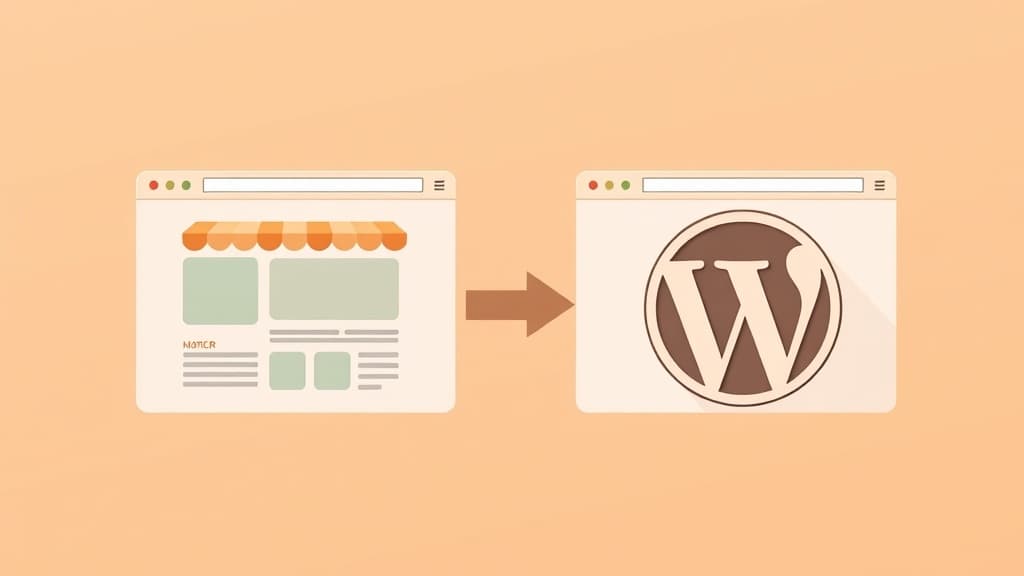
Migrating from Shopify to WordPress + WooCommerce is one of the smartest financial decisions a growing ecommerce store can make. Shopify charges 0.5–2% transaction fees on top of payment processing fees, plus $29–299/month in platform fees. A mid-size store doing $500,000/year in revenue can save $10,000–25,000 annually by switching. This guide gives you the complete migration playbook — zero data loss, minimum downtime.
Why Shopify Merchants Migrate to WooCommerce
The financial case is the most common trigger, but it's not the only reason:
- Transaction fees: Shopify charges 0.5–2% per transaction unless you use Shopify Payments (US/CA/UK/AU only). On $500k revenue, that's $2,500–10,000/year in fees beyond payment processing.
- App costs: Shopify's core features are deliberately limited to push you toward paid apps. A typical store pays $200–800/month in app subscriptions for features that WooCommerce handles free (subscriptions, abandoned cart, reviews, multi-currency, advanced reporting).
- Checkout customization: Shopify Plus ($2,000/month) is required to fully customize checkout. WooCommerce checkout is fully customizable for free.
- Content marketing: Shopify's blog is rudimentary. WordPress powers 43% of the web's content for a reason — its content tools are vastly more powerful, and content marketing is the highest-ROI channel for most ecommerce stores.
- Ownership: On Shopify, you rent your store. On WooCommerce, you own your infrastructure, your data, and your future.
What You'll Migrate: Full Inventory
A complete Shopify to WooCommerce migration moves:
- Products (titles, descriptions, prices, SKUs, variants, images)
- Product categories and collections
- Customers (names, emails, addresses, order history)
- Orders (historical records for accounting and customer service)
- Pages and blog posts (About, Contact, FAQs, all blog content)
- Redirects (critical — every old Shopify URL must redirect to its WooCommerce equivalent)
- Metafields and product attributes
Don't skip any of these. Missing customer records breaks your email marketing. Missing redirects destroys your SEO — years of accumulated page authority disappears overnight without proper 301 redirects.
Step 1: Set Up WooCommerce Before Touching Shopify
Never start by canceling Shopify or touching your live store. Build WooCommerce in parallel first:
- Get WordPress hosting with a new domain or subdomain for the new store. VPS or managed WordPress hosting recommended for stores processing more than 100 orders/month.
- Install WordPress and WooCommerce. Run through WooCommerce setup wizard: store location, currency, payment methods.
- Configure payment processing. Install Stripe for WooCommerce (official plugin, free). Mirror any payment methods you offer on Shopify.
- Set up shipping zones and rates to match your current Shopify shipping configuration exactly. Don't redesign your shipping structure during migration — it creates customer service issues.
- Install and configure your theme. If you use ZonedWeb, Zoni AI can deploy a matching template from our 1,328-template catalog that mirrors your current store's structure.
Complete steps 1–5 with your WooCommerce store in 'maintenance mode' — visible to you but not customers or search engines (add a Robots.txt disallow and password protection during build phase).
Step 2: Export Data from Shopify
Shopify provides CSV exports for most data types. From your Shopify admin:
- Products: Products > Export > All products. Choose 'Plain CSV for Excel.' This exports all product data including variants and inventory.
- Customers: Customers > Export. Exports all customer records with addresses.
- Orders: Orders > Export. Historical orders for your records (WooCommerce won't import these as live orders, but you need them for accounting and support).
- Discount codes: Discounts > Export. Re-create active codes in WooCommerce manually.
- Pages and blog posts: Shopify doesn't offer direct blog export. Use the free Shopify Exporter tool or manually copy important content.
Download product images separately. Shopify's CSV includes image URLs but not the files. Use a bulk image downloader or the free Cart2Cart migration service to handle image migration. Image URLs in Shopify CSVs often break after migration if not downloaded and re-hosted.
Step 3: Import Data into WooCommerce
WooCommerce has a built-in product importer that accepts CSV:
- Go to WooCommerce > Products > Import in your WordPress dashboard.
- Upload your Shopify product CSV. WooCommerce will show a column mapping screen.
- Map Shopify columns to WooCommerce fields. Key mappings: Handle → SKU, Title → Name, Body HTML → Description, Vendor → Attribute.
- Run the import. For stores with 500+ products, do this in batches of 200–300 to avoid server timeouts.
- For customers: Use the free WP All Import plugin. It handles CSV imports with flexible field mapping.
- For redirects: This is the most critical step. Export your Shopify URL structure (every product, collection, and page URL). Use the Redirection plugin for WordPress to create 301 redirects from every old URL to its WooCommerce equivalent. No redirect = lost search ranking for that page.
Step 4: Handle the URL Structure Migration
Shopify and WooCommerce use different URL structures:
- Shopify products: /products/product-name → WooCommerce: /product/product-name (singular)
- Shopify collections: /collections/collection-name → WooCommerce: /product-category/category-name
- Shopify pages: /pages/about → WooCommerce: /about
Create a redirect map before migration: old URL → new URL for every page, product, and collection. If you have 500 products, you need 500 redirect rules. The Redirection plugin can import redirect rules from CSV — prepare this file in advance.
The SEO impact without redirects: Google has indexed your Shopify URLs. When a visitor or Google bot hits a dead URL (404), that page's accumulated authority is lost. With proper 301 redirects, that authority transfers to the new URL. Get this right.
Step 5: Test Everything Before Going Live
Before switching DNS to your WooCommerce store, run this complete test checklist:
- Place a real test order (then refund it). Check that order confirmation emails send correctly.
- Test checkout on mobile — iPhone Safari, Android Chrome.
- Test every payment method.
- Verify all product images display correctly.
- Check that all category pages list the right products.
- Test your most important redirect rules manually.
- Review your site on PageSpeed Insights — target 85+ for mobile.
- Verify your SSL certificate is active (padlock in browser address bar).
- Test your contact form.
- Check that WooCommerce emails (order confirmation, shipping notification) match your brand.
Only proceed to DNS cutover after all items pass. A broken checkout on launch day erodes customer trust and costs you revenue you won't recover.
Step 6: DNS Cutover and Post-Launch
When you're confident in your WooCommerce build:
- Lower your DNS TTL to 300 seconds (5 minutes) 24 hours before cutover. This makes DNS changes propagate faster.
- Point your domain's A record to your WooCommerce hosting server IP.
- Keep Shopify active for 48–72 hours after DNS cutover. Visitors cached to the old IP still need a working store.
- Monitor orders in both Shopify and WooCommerce during the overlap window.
- After 72 hours: pause your Shopify plan (don't cancel immediately — keep it for 30 days in case you need to reference historical data).
- Notify Google: Go to Google Search Console, use the Change of Address tool if you're also changing domains, and submit your new sitemap.
Looking for a faster path? ZonedWeb's WooCommerce vs. Shopify comparison shows the full cost analysis, and ZonedWeb's AI can deploy your new WooCommerce store with a matching template in minutes. You handle the data migration; we handle the infrastructure.
Frequently Asked Questions
Will I lose my Shopify SEO when I migrate to WooCommerce?
Not if you execute redirects correctly. Proper 301 redirects transfer PageRank (link equity) from your old Shopify URLs to your new WooCommerce URLs. Expect a minor 5–15% temporary traffic dip for 2–4 weeks as Google re-crawls and reindexes your site. With all redirects in place, rankings typically recover fully within 30–60 days.
How long does a Shopify to WooCommerce migration take?
Small stores (under 100 products): 1–2 days of focused work. Medium stores (100–1,000 products): 3–7 days including testing. Large stores (1,000+ products, complex variants): 2–4 weeks, often requiring developer assistance for data cleanup. The redirect mapping and URL audit are usually the most time-consuming parts for all store sizes.
Do I need a developer to migrate from Shopify to WooCommerce?
For simple stores under 200 products: no. The built-in WooCommerce importer, WP All Import for customers, and the Redirection plugin handle it. For complex stores with custom Shopify apps, metafields, and 1,000+ SKUs: a developer or migration service (LitExtension, Cart2Cart) saves significant time and prevents errors. Budget $500–3,000 for professional migration assistance at this scale.
Can I keep my existing Shopify customer accounts?
Customer records (names, emails, addresses) migrate via CSV. Customer passwords cannot be transferred — Shopify passwords are encrypted and not exportable. Post-migration, trigger a password reset email to all imported customers. Most customers reset via the 'Forgot password' link naturally. Frame it as a 'site upgrade' email, not a security breach.
What WooCommerce plugins replace Shopify's paid apps?
Most Shopify paid apps have free or cheaper WooCommerce equivalents: Abandoned cart recovery → CartFlows or WooCommerce Cart Abandonment Recovery (free). Subscriptions → WooCommerce Subscriptions ($199/year vs. $40+/month apps). Reviews → WooCommerce Product Reviews Pro or the free Judge.me plugin. Multi-currency → free WooCommerce Multi-Currency plugin. Upsells → One Click Upsells plugin ($79/year). The total WooCommerce plugin cost typically runs $300–800/year vs. $2,400–9,600/year in Shopify apps.
Ready to make the switch? Compare WooCommerce vs. Shopify in detail and calculate your exact savings. ZonedWeb deploys your new WooCommerce store with professional templates and AI assistance — the fastest path from Shopify to ownership.
Zoned Web
The ZonedWeb team builds the AI website platform that designs, writes, and deploys professional, SEO-ready sites — so you can launch in minutes, not weeks.