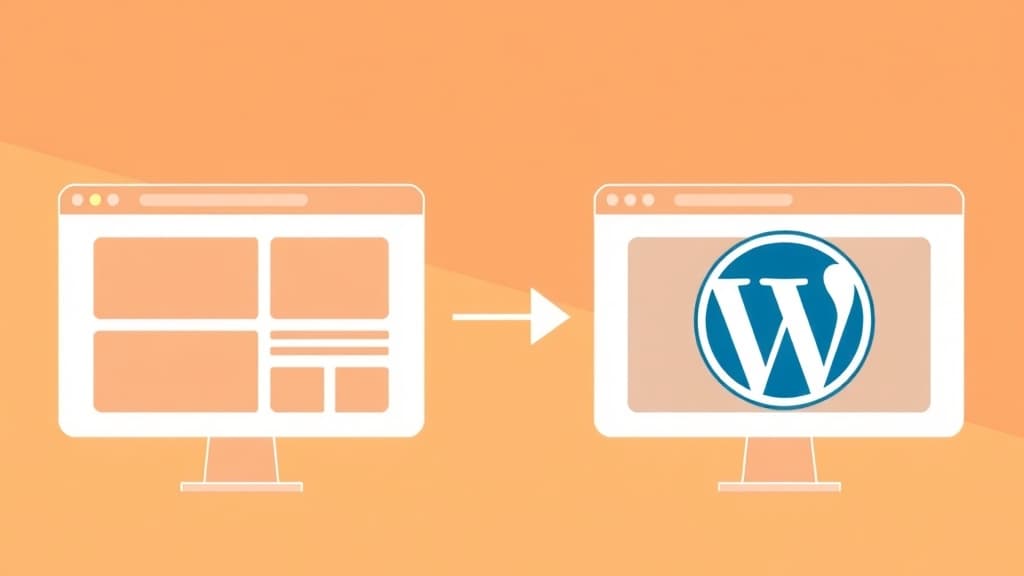
Migrating from Wix to WordPress is the most common platform switch we see at ZonedWeb — and for good reason. Wix is a convenient starter tool, but it becomes a ceiling the moment you need real SEO control, custom functionality, or a store that doesn't hand Wix a percentage of every sale. This step-by-step guide covers exactly how to migrate from Wix to WordPress without losing your content, your search rankings, or your sanity.
Why People Leave Wix for WordPress
Wix feels effortless at first. Drag elements anywhere, publish in an afternoon. But three pain points consistently push growing businesses off the platform:
- SEO ceilings: Wix has improved its SEO tooling significantly, but you still can't control server-side rendering, advanced schema markup, or page-speed at the infrastructure level. Core Web Vitals scores on Wix sites routinely trail equivalent WordPress sites.
- Lock-in: Wix has no full-site export. You cannot download your pages as portable HTML. Every hour you invest in Wix design is trapped inside Wix's proprietary editor.
- Pricing creep: Wix's free plan is ad-supported and not suitable for business. Plans escalate from $17 to $159/month. Add the Wix App Market and real costs land $50–200/month — more than a self-hosted WordPress stack that you actually own.
- eCommerce limits: Wix eCommerce lacks WooCommerce's depth: no subscription products, limited checkout customization, and no ownership of your store data.
What You Can (and Cannot) Export from Wix
Before you start, understand Wix's export limitations — they shape the entire migration strategy:
- Blog posts: Exportable as RSS feed via your-site.wixsite.com/your-path/blog/feed.xml — grab this URL before you do anything else.
- eCommerce products: Exportable as CSV from Wix Dashboard → Store → Products → Export.
- Contacts/customers: Exportable as CSV from Wix CRM.
- Pages and custom layouts: NOT exportable. You will need to rebuild these pages on WordPress — this is actually an opportunity to modernize your design.
- Images and media: Wix stores media on their CDN. Download your images manually from Wix Media Manager before you cancel your plan.
Step 1: Audit and Download Everything From Wix
Do not cancel your Wix subscription until your WordPress site is fully live and tested. Start by collecting everything you need:
- Open Wix Dashboard and go to Marketing Tools → SEO → SEO Settings. Screenshot or note every custom meta title and description you've written.
- Visit your-domain.wixsite.com/sitename/blog/feed.xml and save the RSS feed to your computer.
- Go to Store → Products → Export Products if you have a Wix Store. Download the CSV.
- Open Media Manager and download all images and files. Organize them into folders matching your site structure.
- Export contacts/leads from Wix CRM.
- In a spreadsheet, list every page URL on your Wix site — you'll need these for redirect mapping.
- Use a tool like Screaming Frog (free up to 500 URLs) to crawl your Wix site and export all URLs, meta titles, and H1s.
Step 2: Set Up Your WordPress Site on ZonedWeb
While your Wix site stays live, build your WordPress site on a staging environment. ZonedWeb's Wix-to-WordPress migration gives you a fully hosted WordPress environment with one click — real WordPress, real files, real ownership.
- Sign up at ZonedWeb and choose a plan. Your WordPress installation is provisioned automatically.
- From your ZonedWeb dashboard, open Zoni AI and describe your business. Zoni selects from 1,328 professional templates and configures your site structure.
- Install WooCommerce if you're rebuilding a Wix Store — it's available in one click from your dashboard.
- Set your site to a maintenance or coming-soon page so it's not indexed while under construction.
Step 3: Import Your Wix Blog Posts
WordPress has a built-in RSS importer that pulls your Wix blog posts directly:
- In WordPress admin, go to Tools → Import → RSS. If not installed, click 'Install Now'.
- Upload the RSS feed file you saved from Wix. WordPress imports post titles, content, and dates.
- After import, review each post. Wix RSS often carries over extra line breaks and formatting artifacts — clean these in the WordPress editor.
- Re-upload any embedded images that Wix is serving from its CDN (they'll break when you point your domain away from Wix). Use the Media Library and update image URLs in posts.
Step 4: Rebuild Your Key Pages
Pages can't be exported from Wix — but this is where you gain, not lose. Your Wix pages were locked into Wix's layout system. On WordPress with ZonedWeb's templates, you get:
- Pixel-perfect page layouts from 1,328 professional templates
- Full HTML/CSS control — no proprietary editor constraints
- Block editor (Gutenberg) or page builder of your choice
- Performance-optimized layouts that score well on Core Web Vitals
Use your Wix pages as a content brief, not a design blueprint. Copy the text, rewrite the structure for WordPress, and let your new template make it look better than it did on Wix.
Step 5: Import eCommerce Products (If Applicable)
If you ran a Wix Store, import your products into WooCommerce using the CSV you exported:
- In WordPress admin, go to WooCommerce → Products → Import.
- Upload the Wix product CSV. WooCommerce's importer shows a column mapping screen — map Wix's column names to WooCommerce fields (Name → Name, Description → Description, Regular price → Regular price, etc.).
- Upload your product images to the WordPress Media Library and update product image URLs after import.
- Review product variants, stock levels, and shipping classes. Wix uses a different variant model than WooCommerce — complex variant products may need manual adjustment.
Step 6: Set Up 301 Redirects and Preserve SEO
This is the most critical step. Every indexed URL on your Wix site needs a 301 redirect to its WordPress equivalent. Missing even 20–30 redirects can cause significant ranking drops.
- Install the Redirection plugin on WordPress (free, 2 million+ installs).
- Using your Screaming Frog export and Wix sitemap, map each old URL to its new WordPress URL in a CSV.
- Import the redirect CSV into the Redirection plugin via Redirection → Tools → Import.
- Wix blog URLs typically follow /post/slug format. WordPress defaults to /blog/slug or /%postname%/ — set your WordPress permalink structure first, then map accordingly.
- Test 20–30 random redirects manually before going live. Use a browser plugin or curl -I to verify 301 status codes.
Also replicate your Wix SEO settings in WordPress: install Yoast SEO or Rank Math and re-enter every custom meta title and description from your audit spreadsheet. This preserves the exact signals Google has already indexed for your pages. For more SEO migration details, see our guide on how to make a WordPress website that ranks.
Step 7: Point Your Domain to WordPress
When your WordPress site is fully tested — all pages live, products imported, redirects verified — update your DNS:
- Log into your domain registrar (wherever you registered your domain — this is separate from Wix).
- Update your A record and CNAME to point to your ZonedWeb server. Your ZonedWeb dashboard shows the exact DNS values.
- DNS propagation takes 15 minutes to 48 hours. Your Wix site serves traffic during propagation — no downtime.
- Once propagation is complete, visit your domain and confirm the WordPress site loads correctly.
- Submit your new sitemap to Google Search Console: GSC → Sitemaps → Submit.
Step 8: Post-Launch Checklist
After going live, run through these items within the first 48 hours:
- Monitor Google Search Console for crawl errors and redirect chains
- Check that all images load (no broken images from Wix CDN references)
- Test checkout flow end-to-end if you migrated an eCommerce store
- Verify SSL certificate is active on your WordPress domain
- Set up Google Analytics 4 on your new WordPress site
- Cancel your Wix subscription — keep it active for 30 more days during SEO monitoring, then cancel
Frequently Asked Questions
Will I lose my Google rankings when I migrate from Wix to WordPress?
Not if you implement 301 redirects correctly. Google's official guidance is that 301 redirects transfer the majority of PageRank from old URLs to new ones. Expect a minor traffic dip of 5–15% for 2–4 weeks as Google recrawls your site, followed by full recovery — and often improved rankings due to WordPress's superior SEO capabilities.
Can I export my Wix website design to WordPress?
No. Wix's drag-and-drop layouts are proprietary and cannot be exported as HTML or any portable format. You'll need to rebuild your pages on WordPress. The upside: starting fresh means you can choose a significantly better template from ZonedWeb's library of 1,328 professional designs rather than being constrained by Wix's layout system.
How long does a Wix to WordPress migration take?
A simple blog or portfolio site: 1–3 days. A business site with 10–20 pages: 3–7 days. A Wix Store with 50–500 products: 5–14 days including testing. The redirect mapping and page rebuilding are the most time-intensive parts. Using ZonedWeb's AI-assisted setup and template library cuts the page-building time significantly.
Do I need to keep paying for Wix while I migrate?
Yes — keep your Wix subscription active throughout the migration and for at least 30 days after your WordPress site goes live. This ensures your old Wix URLs remain accessible during DNS propagation and lets you monitor for any missed redirects. Cancel Wix only after confirming all traffic is correctly hitting your WordPress site.
Is WordPress harder to manage than Wix?
Modern WordPress — especially when hosted on a managed platform like ZonedWeb — is not significantly harder than Wix for day-to-day content management. You get the same visual editing experience for blog posts and pages. Where WordPress requires more attention is plugin updates and occasional troubleshooting, which ZonedWeb handles automatically on managed plans.
Ready to make the move? Explore our full Wix to WordPress migration guide and start your ZonedWeb site today — your WordPress site is live in minutes, not weeks. Compare your current Wix costs against ownership at our platform comparison hub.
Zoned Web
The ZonedWeb team builds the AI website platform that designs, writes, and deploys professional, SEO-ready sites — so you can launch in minutes, not weeks.